
Website chat: take orders on your website
The same AI host, in writing, on your website. Install it in 3 steps.
How it works
A chat bubble on your website. Customers ask questions, order for pickup or delivery and pay by card on a secure page, exactly like on the phone. Orders go to your kitchen screen.
The chat only ever speaks for your restaurant, and only works on the websites you list.
1. Your website
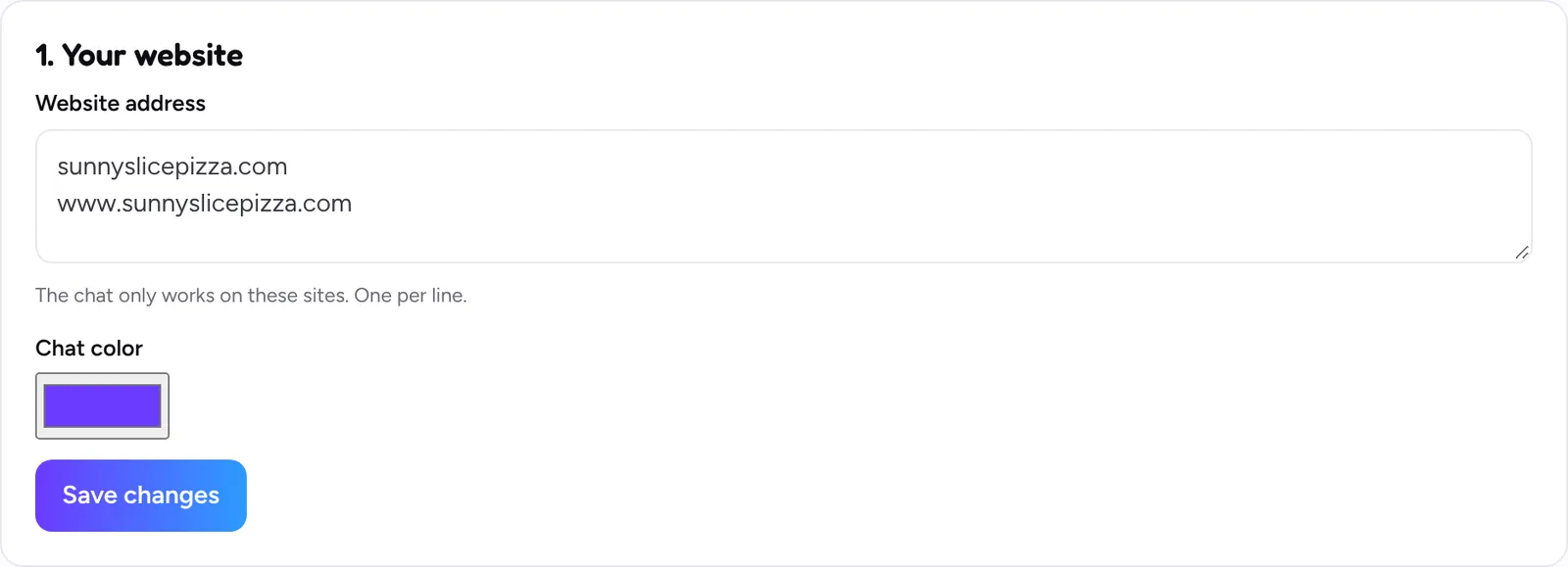
- Open Website chat.
- Write your website address (one per line if you have more than one).
- Pick the chat color (your brand color) and click Save changes.
2. Add the line to your website
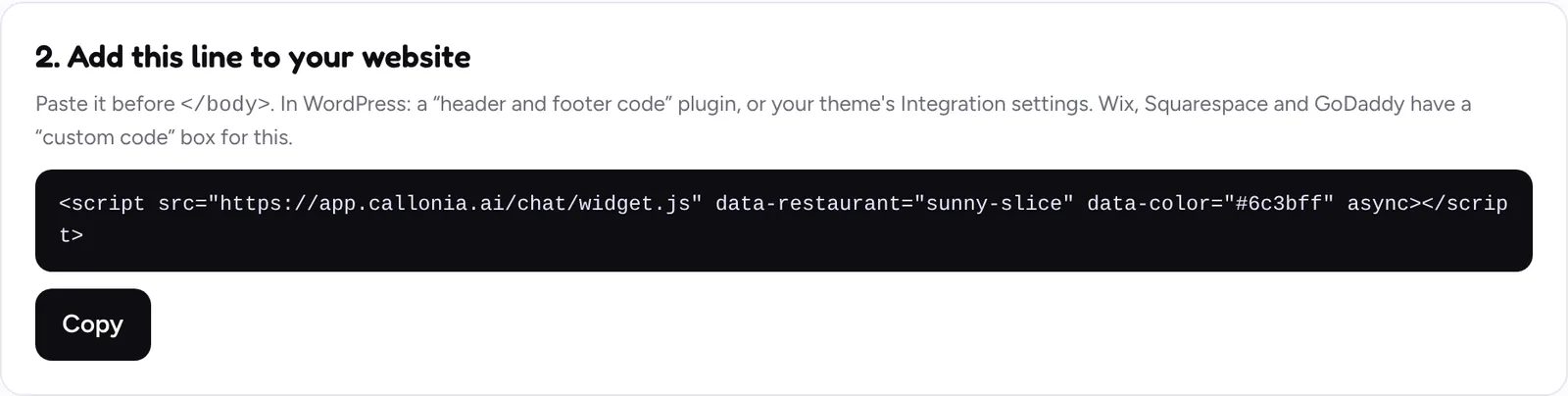
- Click Copy.
- Paste it before </body> on your website. WordPress: a “header and footer code” plugin or your theme’s Integration settings. Wix, Squarespace and GoDaddy: their custom code box.
- Open your website: the chat bubble shows at the bottom right.
3. Tell us when it is live

Once the chat shows on your website, turn on “The chat is installed and working on my website”. Your SMS terms page and your text registration then say customers can also order in the chat. Leave it off until the chat is really there: carriers check your website.
Order texts in the chat
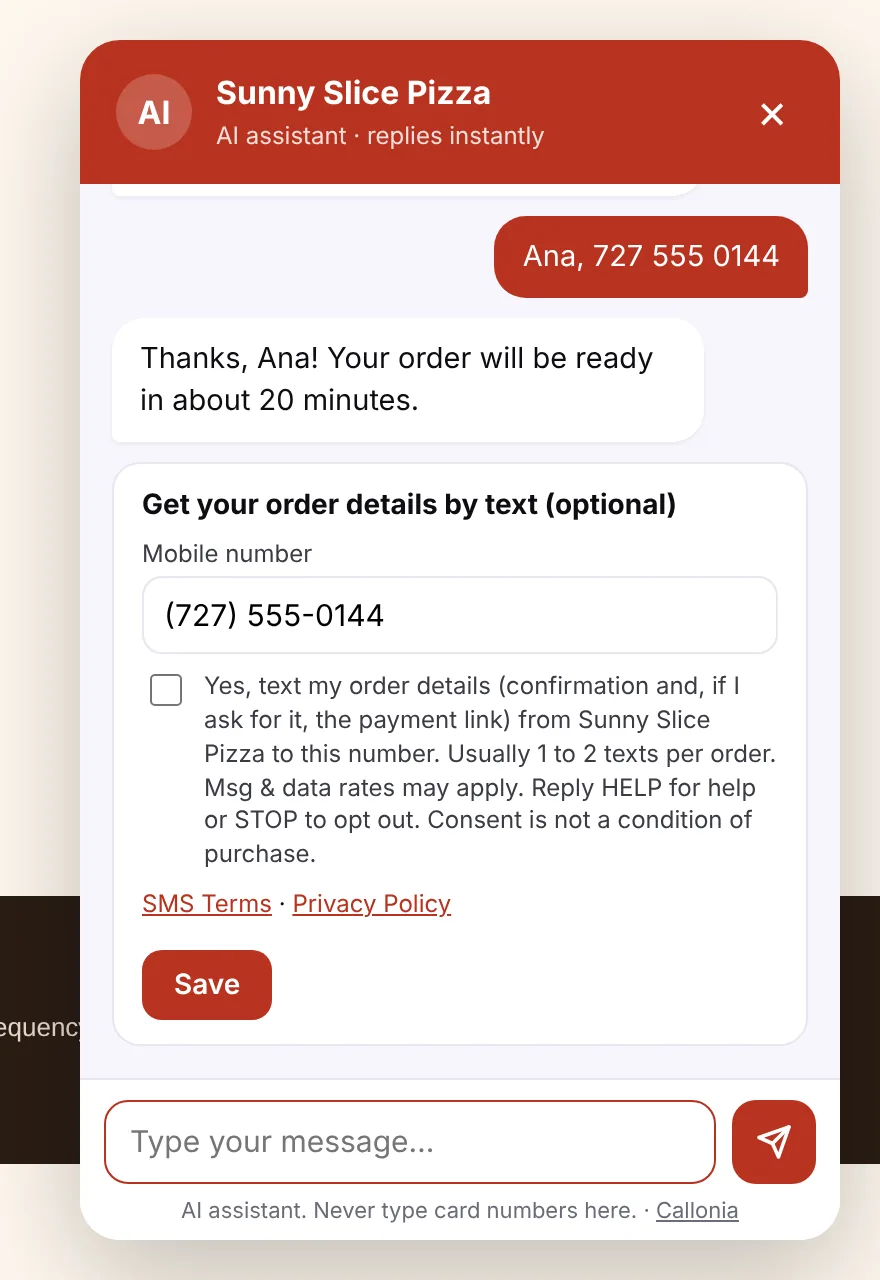
When a customer types their mobile number, the chat shows their number with a box they can tick to get the order details by text. It is never ticked for them, and texts are only sent when they tick it.
Still stuck? Write to [email protected] with your restaurant name and we’ll get back to you.